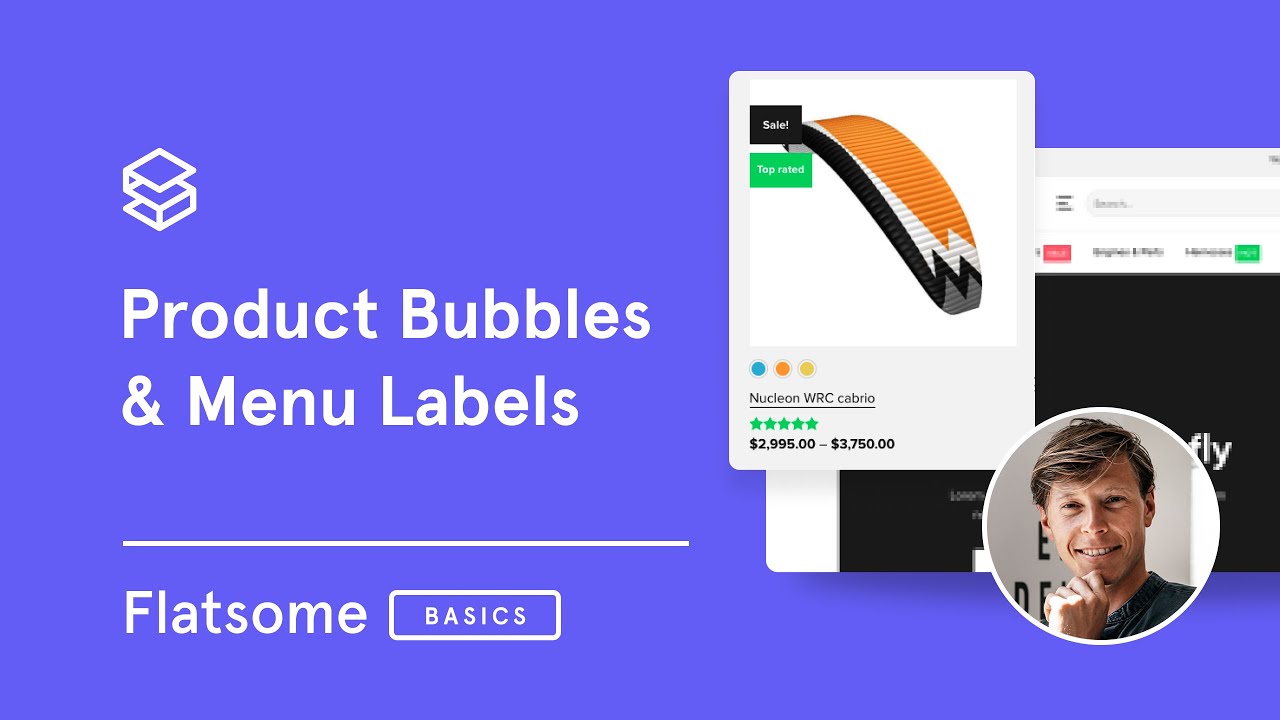
In this guide, we’ll go through how to set up custom product bubbles and menu labels in your Flatsome theme. These eye-catching labels can highlight sales, popular items, or anything else you want to make stand out. Let’s dive in!
Step-by-Step Guide
Step 1: Access Flatsome’s Default Labels
- Open the Flatsome Documentation – Flatsome provides four default labels: New, Sale, Hot, and Popular. Review these options to see if any meet your needs.
- Go to the Menu Settings in WordPress:
- Navigate to Appearance > Menus in your WordPress dashboard.
- Select the menu where you want to add a label, such as your main menu.
- Add CSS Classes to Labels:
- Enable CSS options if needed by going to Screen Options (top right) and checking CSS Classes.
- Add one of the default labels (e.g.,
label-new,label-hot) as a CSS class for your menu item.
- Save and Refresh – Once saved, refresh your page to see your new label in action!
Step 2: Customize the Label’s Look with CSS
- Copy and Apply Custom CSS:
.label-new.menu-item>a:after, .label-hot.menu-item>a:after, .label-sale.menu-item>a:after, .label-popular.menu-item>a:after, .label-custom.menu-item>a:after {
text-transform: uppercase;
font-size: 9px;
font-weight: bolder;
padding: 4px;
border-radius: 2px;
line-height: 12px;
top: 1px;
letter-spacing: 0.05em;
margin-left: 4px;
display: inline-block;
position: relative;
}
.label-new.menu-item>a:after {
content: 'Nieuw' !important; /* Change Text */
background-color: #6168F2;  /* Change BG color */
color: #FFFFFF; /* Change Text color */
}
.label-hot.menu-item>a:after {
content: 'Hot' !important;
background-color: #35CE9D;
color: #FFFFFF;
}
.label-sale.menu-item>a:after {
content: 'Sale' !important;
background-color: #FC6070;
color: #FFFFFF;
}
.label-custom.menu-item > a:after {
content: 'Custom';
background-color: #262626;
color: #FFFFFF;
}
-
- In Flatsome, go to Advanced > Custom CSS and paste in the custom code provided in the tutorial (available on Seb’s website). This will allow you to further customize fonts, colors, padding, etc.
- Adjust settings like font size, color, or padding to get the label looking just right.
- Save and Preview – After saving, refresh your page again to view the changes.
Step 3: Create a Custom Label
- Add a Custom Label in CSS:
- Add a new label by assigning a unique name (e.g.,
label-trendy) in your CSS. - Customize the label text, background color, and text color directly in the CSS file.
- Add a new label by assigning a unique name (e.g.,
- Add the Custom Label to Your Menu:
- In the menu, set the CSS class for your item to your custom label (e.g.,
label-trendy).
- In the menu, set the CSS class for your item to your custom label (e.g.,
- Save and Preview – Save your changes and refresh to see your new custom label live!
Step 4: Add Product Bubbles for WooCommerce
- Enable WooCommerce Sale Badges:
- In WooCommerce > Product Catalog, set a sale price for an item to activate the sale badge.
- Go to Flatsome > Theme Options > WooCommerce > Product Catalog, scroll down, and adjust the Bubble Style (e.g., round or square) and text (e.g., show discount percentage or “Sale”).
- Customize Bubble Color:
- Go to Flatsome > Theme Options > Style > Colors to adjust the colors of sale and custom bubbles.
- Save your changes to see the colors update on the site.
Step 5: Add Multiple Labels (Optional)
- Add Multiple Custom Labels:
- Repeat steps to add additional custom labels, modifying the CSS each time to specify the label’s unique text, color, etc.
- Save and refresh your page to see multiple labels, such as a “New” and “Hot” label displayed together.
You now have customized product bubbles and menu labels to highlight key items and make your website more engaging. Experiment with these steps to find a style that works best for you!
.label-new.menu-item>a:after, .label-hot.menu-item>a:after, .label-sale.menu-item>a:after, .label-popular.menu-item>a:after, .label-custom.menu-item>a:after {
text-transform: uppercase;
font-size: 9px;
font-weight: bolder;
padding: 4px;
border-radius: 2px;
line-height: 12px;
top: 1px;
letter-spacing: 0.05em;
margin-left: 4px;
display: inline-block;
position: relative;
}
.label-new.menu-item>a:after {
content: 'Nieuw' !important; /* Change Text */
background-color: #6168F2;  /* Change BG color */
color: #FFFFFF; /* Change Text color */
}
.label-hot.menu-item>a:after {
content: 'Hot' !important;
background-color: #35CE9D;
color: #FFFFFF;
}
.label-sale.menu-item>a:after {
content: 'Sale' !important;
background-color: #FC6070;
color: #FFFFFF;
}
.label-custom.menu-item > a:after {
content: 'Custom';
background-color: #262626;
color: #FFFFFF;
}
Block "10368" not found
